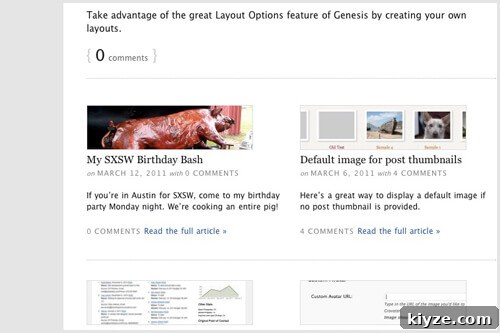
I recently rebuilt my blog using the Genesis Grid Loop, a useful feature in the Genesis framework that lets you present a few large feature posts followed by a grid of smaller posts.
To get started, these two tutorials are helpful: How to Use the Genesis Grid Loop and Genesis Grid Loop Advanced. After working through them you’ll be able to configure the grid with any number of features and columns. This article explains how to customize the content and layout of both the feature posts and the grid posts. Specifically, it covers:
- Displaying the manual excerpt for features and grid posts instead of a truncated portion of the full content, so you can write concise summaries that appear on the blog index.
- Moving the grid post thumbnail from below the title to above the title.
- Adding a divider between rows of the grid to visually separate groups of posts.
Setup
First, set up the grid loop following the tutorials referenced above for a complete explanation. In my configuration I set grid_image_size = '0' so the grid helper does not automatically insert images for the grid posts. Separately (for example, in functions.php) I registered two image sizes: one for feature posts (named “child_full”) and one for grid posts (named “child_thumbnail”).
I use a “child” prefix throughout this example; replace that with your own prefix (for instance, your initials) to avoid conflicts with other code.
In my child theme I created a home.php template for the blog page and used the grid loop setup there.
Using the Excerpt
The grid loop builds post output using the function genesis_grid_loop_content(). To display the post excerpt instead of the truncated content, unhook the default function and replace it with a custom version. It’s safest to copy the original function and modify that copy as a base for changes.
In the home template, before calling genesis(), add code to remove the default grid loop content function and hook your own. Then create a custom function (for example, child_grid_loop_content()) that outputs the post title, linked thumbnail placement (if desired), and the post excerpt using WordPress’s the_excerpt() or a custom excerpt rendering function. You can also include code to render the comment count in the format you prefer.
With this replacement in place, the blog index will display the manual excerpt for each feature and grid post instead of a truncated portion of the full post content.
Thumbnail Above Grid Posts
The original genesis_grid_loop_content() places the grid thumbnail between the title and content. To place the thumbnail above the title, disable automatic grid thumbnails in the grid helper (as noted above) and add a custom function that outputs the thumbnail where you want it.
Within your switch or setup function, add an action that hooks a thumbnail-output function to genesis_before_post_title. Then create that thumbnail function so it checks whether the current post is part of the grid (and not a feature) and, if so, outputs the appropriate image size and markup. Because the function is hooked to genesis_before_post_title, the thumbnail will display before the post title.
Row Dividers
To insert a divider between rows of grid posts, add an action that runs after each post and prints an HTML divider element (for example, an
). Hook this action to genesis_after_post and write a function that determines when a divider should appear.
The divider function needs to know two things: how many columns your grid has and how many feature posts appear above the grid. Use the loop counter and page information to calculate when the current post completes a row of grid items and is not part of the feature section. For example:
- Check whether the loop counter (starting at 0) indicates the end of a row:
((($loop_counter + 1) % $columns) == 0), where$columnsis the number of grid columns. - Ensure you are not within the top feature posts on the first page: for instance
!($paged == 0 && $loop_counter < $features), where$featuresis the number of feature posts.
When these conditions are met, output your divider element. If you use an
, add styling in your theme’s CSS (style.css) to control appearance and set the width to 100% so the divider spans the container.
Putting It All Together
Combine the pieces in your home.php template: remove the default grid loop content, register and hook your custom content and thumbnail functions, and add the divider action. Adjust the column and feature counts to match your grid configuration, and ensure any image sizes used are registered in your theme. With these changes you’ll have feature posts and grid posts that display manual excerpts, thumbnails above grid titles, and a clear divider between grid rows.